
start
This is an old revision of the document!
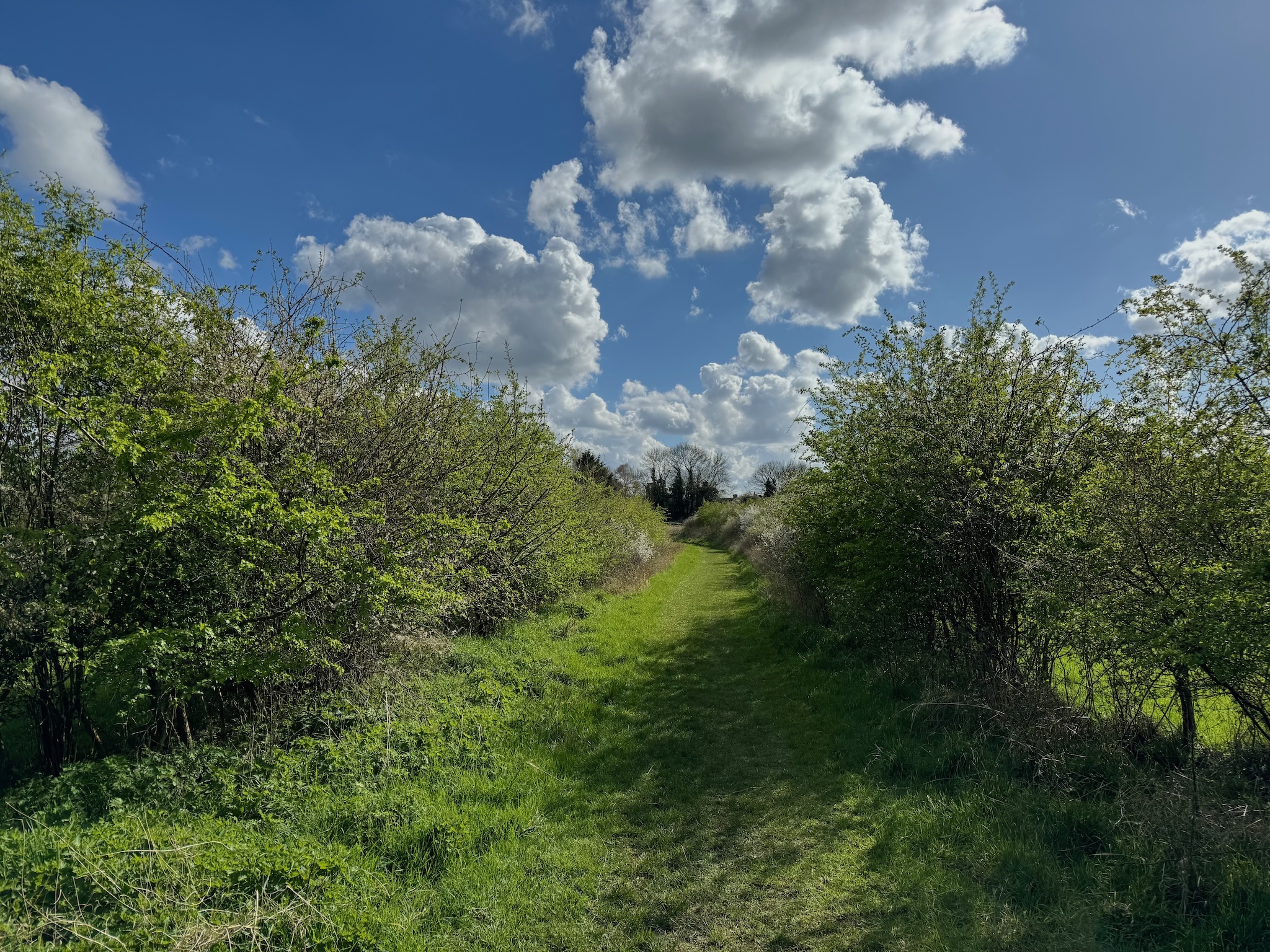
The bridleway on Linnets Lane…
| September | 2026 | |||||
| M | T | W | T | F | S | S |
1
| 2
| 3
| 4
| 5
| 6
| |
7
| 8
| 9
| 10
| 11
| 12
| 13
|
14
| 15
| 16
| 17
| 18
| 19
| 20
|
21
| 22
| 23
| 24
| 25
| 26
| 27
|
28
| 29
| 30
| ||||
s2_maps_3_ashen_to_20_cressing_tye_green_adopted.pdf
s2_maps_3_ashen_to_20_cressing_tye_green_adopted.pdf
operating instructions
Various functions are available as part of the map.
mouse/touch operation
- moving by grabbing the map with a mouse-click you can move the map around
- overview map using the < button in the bottom right of the map you can expand an overview map
- zooming in and out using the + and - buttons in the top left of the map you can obtain more or less detail in the map
- switching themes or maps clicking on the ≡ icon on the right-hand side of the map you can view and select available maps and themes
- retrieving information the map may contain elements that contain more information, by clicking these a popup will show this information
- fullscreen display using the ⛶ button the map can be maximized to fullscreen display, use the ▢ button to return to page display.
keyboard operation
Keyboard operation becomes available after activating the map using the tab key (the map will show a focus indicator ring).
- moving using the arrow keys you can move the map
- overview map using the + button in the bottom right of the map you can expand an overview map
- zooming in and out using the + and - buttons in the top left of the map or by using the + and - keys you can obtain more or less detail in the map
- switching themes or maps clicking on the ≡ icon on the right-hand side of the map you can view and select available maps and themes
- retrieving information the map may contain elements that contain more information, using the i key you can activate a cursor that may be moved using the arrow keys, pressing the enter will execute an information retrieval. press the i or the escape key to return to navigation mode
- fullscreen display using the ⛶ button the map can be maximized to fullscreen display, use the ▢ button to return to page display.
It's possible that some of the functions or buttons describe above have been disabled by the page author or the administrator

| id | symbol | latitude | longitude | description |
|---|---|---|---|---|
| This map shows a gpx trace, a kml trace and a dot | ||||
| 1 |  |
52.1º | 5.1º | Just a spot |
 |
 |
KML track: mtb | ||
 |
 |
GPX track: hardlopen gpx | ||
 |
 |
GeoJSON track: test.gso | ||
start.1733168488.txt.gz · Last modified: 2024/12/02 19:41 by admin